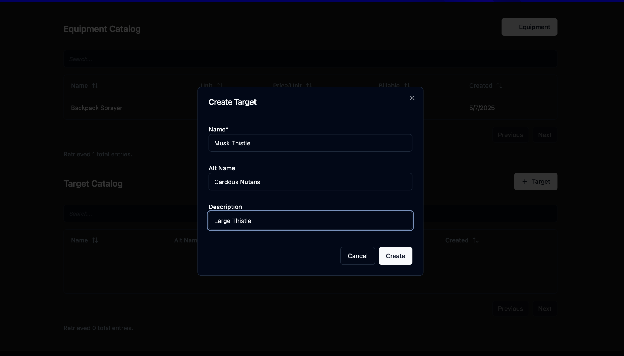
Catalog Management
The Catalog lets you manage all equipment and targets used across jobs and invoices. Most items are editable from detail sheets. STO products are edited inline directly in the products table row and expanded child panel.
Opening the Catalog
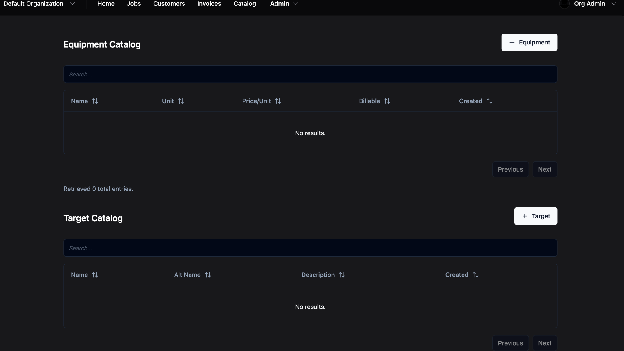
Access the Catalog
- Click the Catalog button in the top menu
- From here, view, add, or edit equipment and targets
Adding Equipment
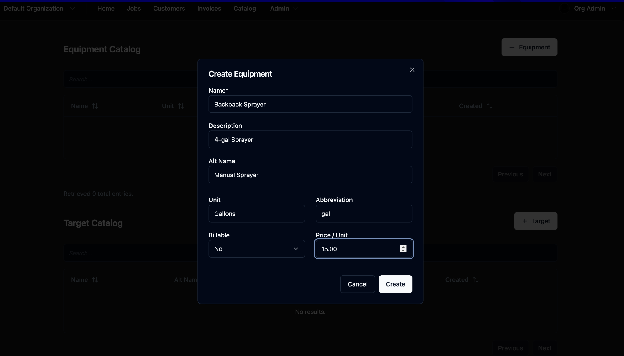
Step-by-Step: Add Equipment
- Click “Add Equipment” – A pop-up will appear
- Enter Equipment Info – Fill in relevant details
- Click “Create” – The item will be saved to the catalog
STO Product Inventory + SKU Behavior
- Choosing an existing inventory item links the product recipe to that inventory SKU.
- Creating a new inventory value derives the new SKU code from the product name.
- Typing a create value that matches an existing inventory SKU/name reuses that existing inventory instead of creating a duplicate.
- If that SKU collides, the form shows both the collision error and a suggested SKU.
- Leaving inventory empty keeps the product on its default recipe fallback.
STO Product Inline Editing
- In STO Products, Edit now opens inline controls on the selected row.
- Parent row fields and accordion child fields are editable together.
- Only one row can be edited at a time.
- While save is in progress, the edited row shows a pending Saving... state.
- View via the Eye action still opens the product detail sheet.
- Unit selection supports create-from-combobox and opens the create-unit dialog prefilled from the typed value.
- SKU recipe inputs support create-from-combobox and open create inventory with the typed SKU prefilled.
STO Product Tags and Facets
- STO product catalog uses a flat product table.
- The product page uses a combined search + tag filter input with inline badges.
- Search text is URL-driven with the
searchquery param. - Tag filters are URL-driven with the
tagsquery param. - Search and tag filters are shareable by URL.
- Tag filter semantics remain AND across selected tags.
- Tag scope behavior:
- no module scopes set on a tag: available cross-module
- one or more module scopes: available only in those modules
- Store sidebar links for Inventory and Sources are disabled outside development.
- Direct route access to
/catalog/STO/skuand/catalog/STO/inventoryis blocked outside development.
Adding Targets
Step-by-Step: Add a Target
- Click “Add Target” – Opens a new item window
- Enter Target Details – Add identifying information
- Click “Submit” – The target is saved and ready for jobs