Catalog Management
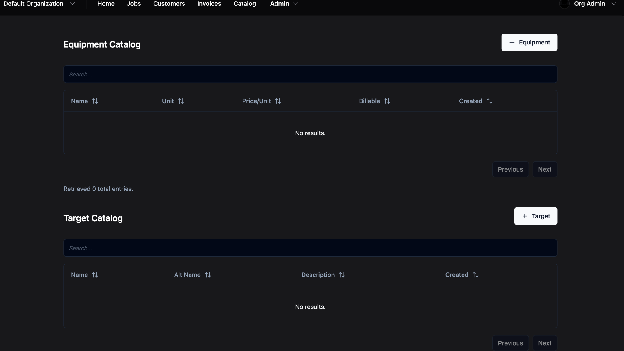
The Catalog lets you manage all equipment and targets used across jobs and invoices. Items are editable from their detail sheets — just tap the row of the item you want to update.
Opening the Catalog
Access the Catalog
- Click the Catalog button in the top menu
- From here, view, add, or edit equipment and targets
Adding Equipment
Step-by-Step: Add Equipment
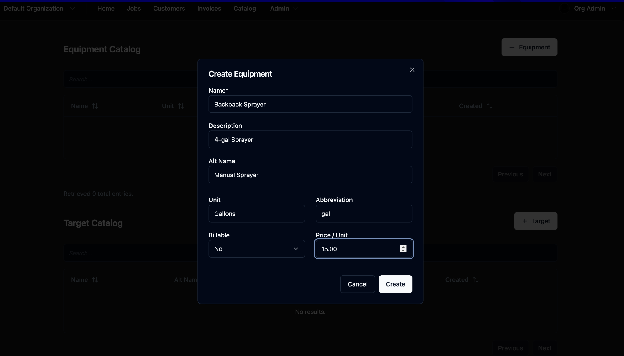
- Click “Add Equipment” – A pop-up will appear
- Enter Equipment Info – Fill in relevant details
- Click “Create” – The item will be saved to the catalog
STO Product Inventory + SKU Behavior
- Choosing an existing inventory item links the default variant recipe to that inventory SKU.
- Creating a new inventory value derives the new SKU code from the product name.
- Typing a create value that matches an existing inventory SKU/name reuses that existing inventory instead of creating a duplicate.
- If that SKU collides, the form shows both the collision error and a suggested SKU.
- Leaving inventory empty keeps the default variant on the infinite-safe recipe fallback.
Adding Targets
Step-by-Step: Add a Target
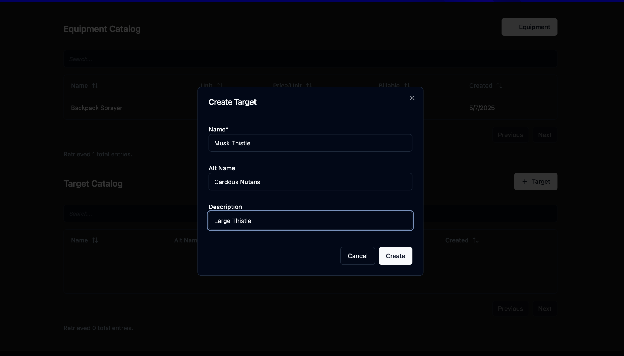
- Click “Add Target” – Opens a new item window
- Enter Target Details – Add identifying information
- Click “Submit” – The target is saved and ready for jobs