Administrator Guide – New Organization
Welcome to Zero Desk!
In this guide, you’ll walk through the setup of ACME Pond Company. By the end, you’ll know how to:
- Configure your organization
- Add users and manage permissions
- Catalog equipment and target species
- Add and organize customer accounts
- Create and assign jobs
- Generate invoices
Setting Up Your Organization
Getting Started with ACME Inc
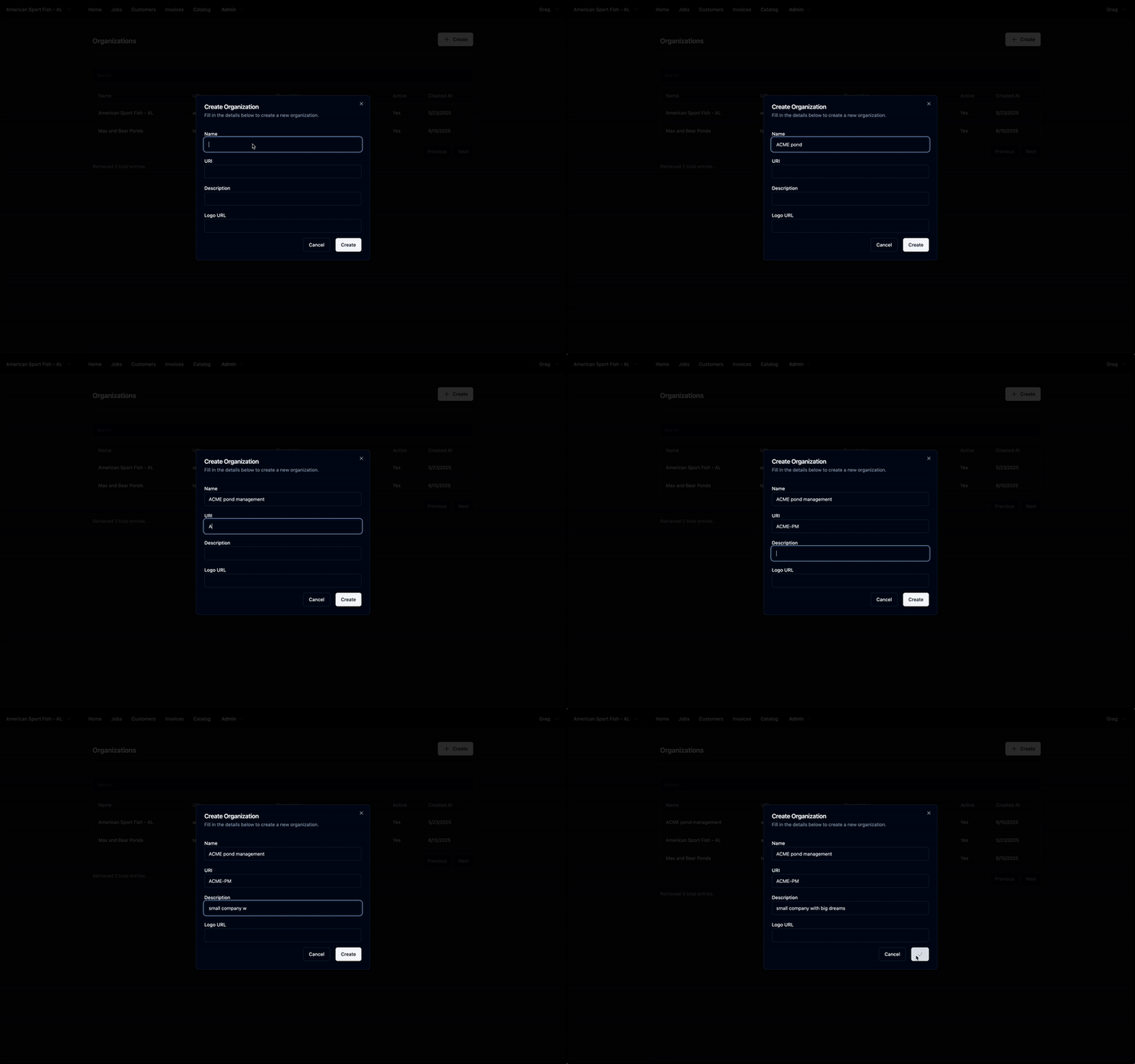
Once you log in, go to Admin → Organization and click on the +Create button to access the organization setup screen.
Enter your company name (e.g., ACME Inc)
Add a unique URI
- Add a brief description of your office or team
- Upload your logo to personalize your dashboard
A URI (Uniform Resource Identifier) is a unique path that
identifies your organization in the Zero Desk system. For example,
acme becomes https://zerodesk.app/o/acme. This makes
it easier for your team to sign in and access your dedicated workspace.
Adding Users to Your Organization
- Add Users
- Create Roles & Permissions
Invite Your Team
Add field staff, administrators, or biologists to your Zero Desk organization.
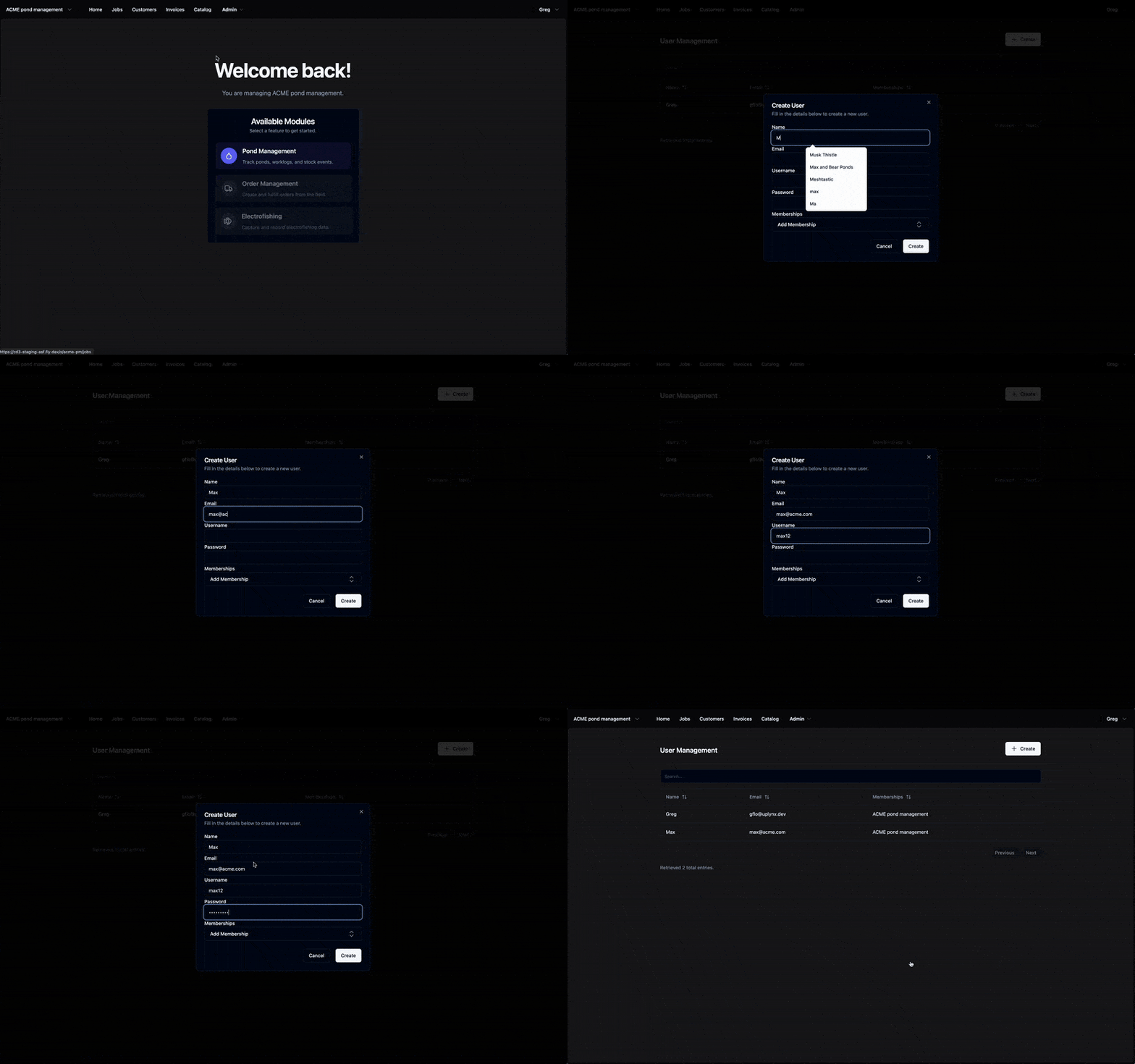
- Go to Admin → Users
- Click +Create and enter their name, email address, username, and password.
- Select a default role (Administrator, biologist, etc.)
Customize Access with Roles
Control who can view, create, or manage different parts of your workspace by creating custom roles.
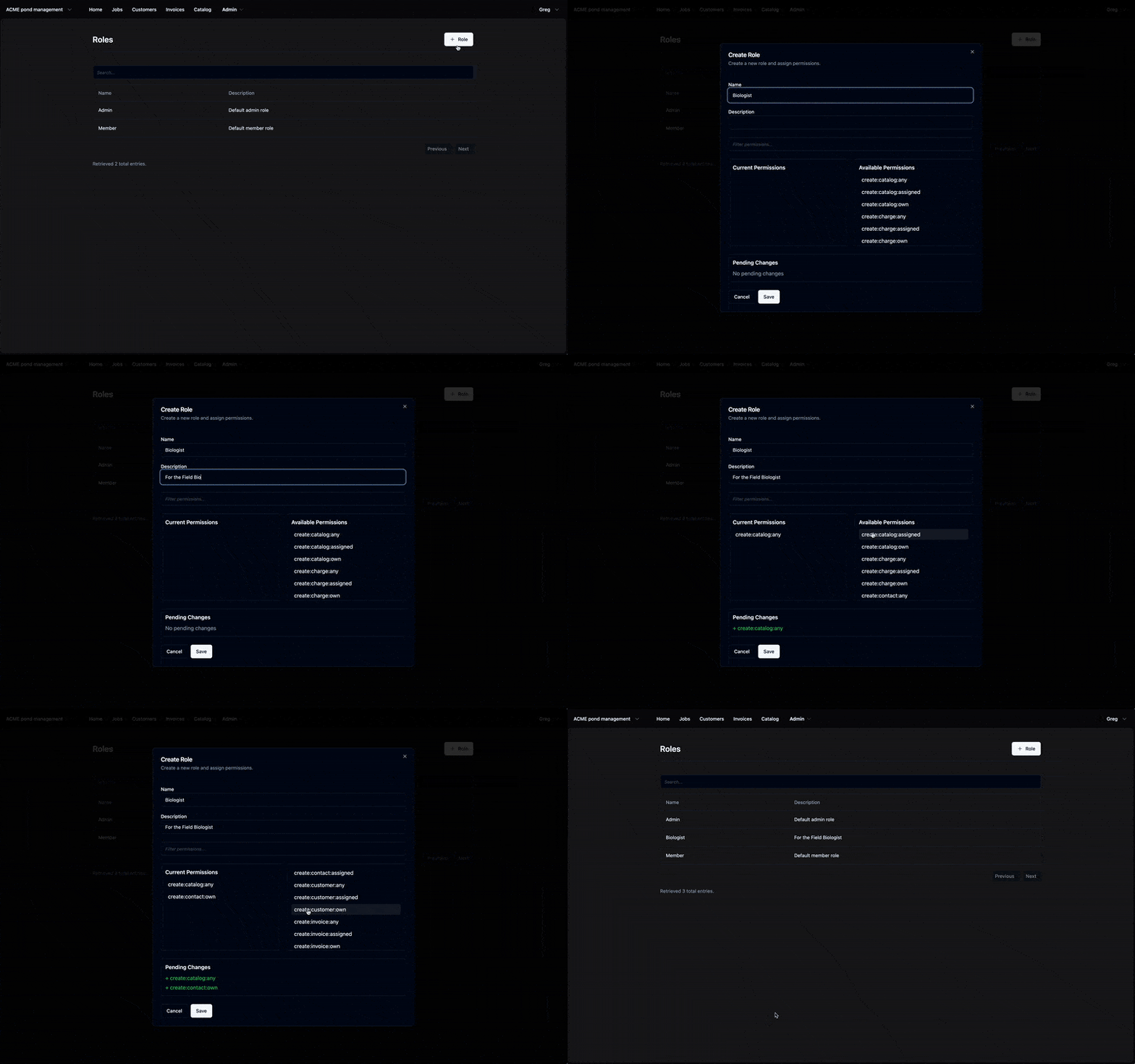
- Navigate to Admin → Roles
- Create a new role (e.g., Biologist)
- Choose which tasks the role can access (Jobs, Invoices, Customers, etc.)
- Assign the role to individual users during onboarding or anytime after
Add Equipment & Targets
- Equipment
- Targets
Catalog Field Equipment
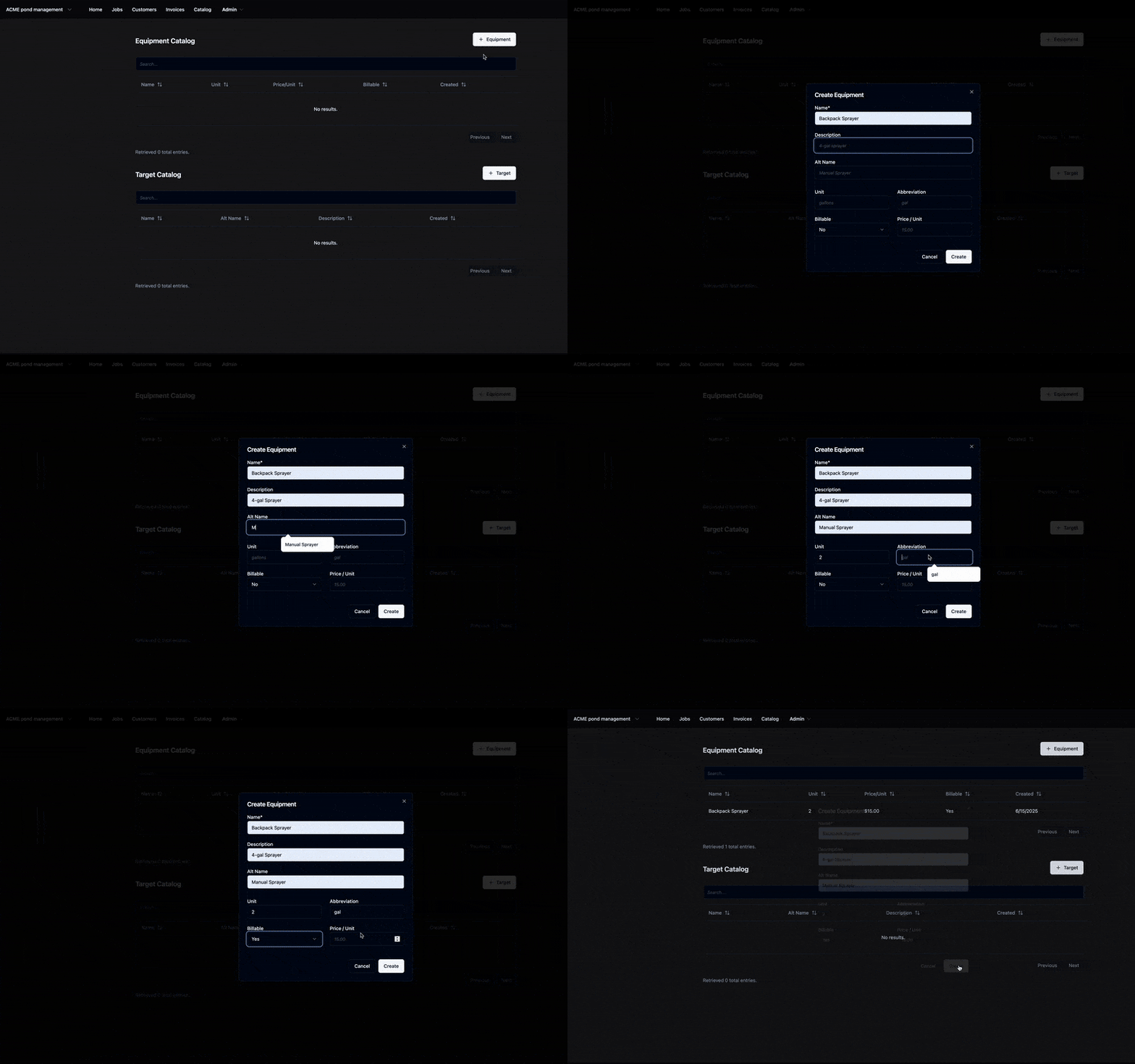
Build a inventory of field equipemtn to streamline job creation and ensure technicians have what they need. Go to the Catalog section of the app and click +Equipment to add a piece of equipment.
Add tools like Backpack Sprayer and Winch
Include a description and the cost of using the equipment this can be used to create estimates for customers in the future.
Define Wildlife or Plant Targets
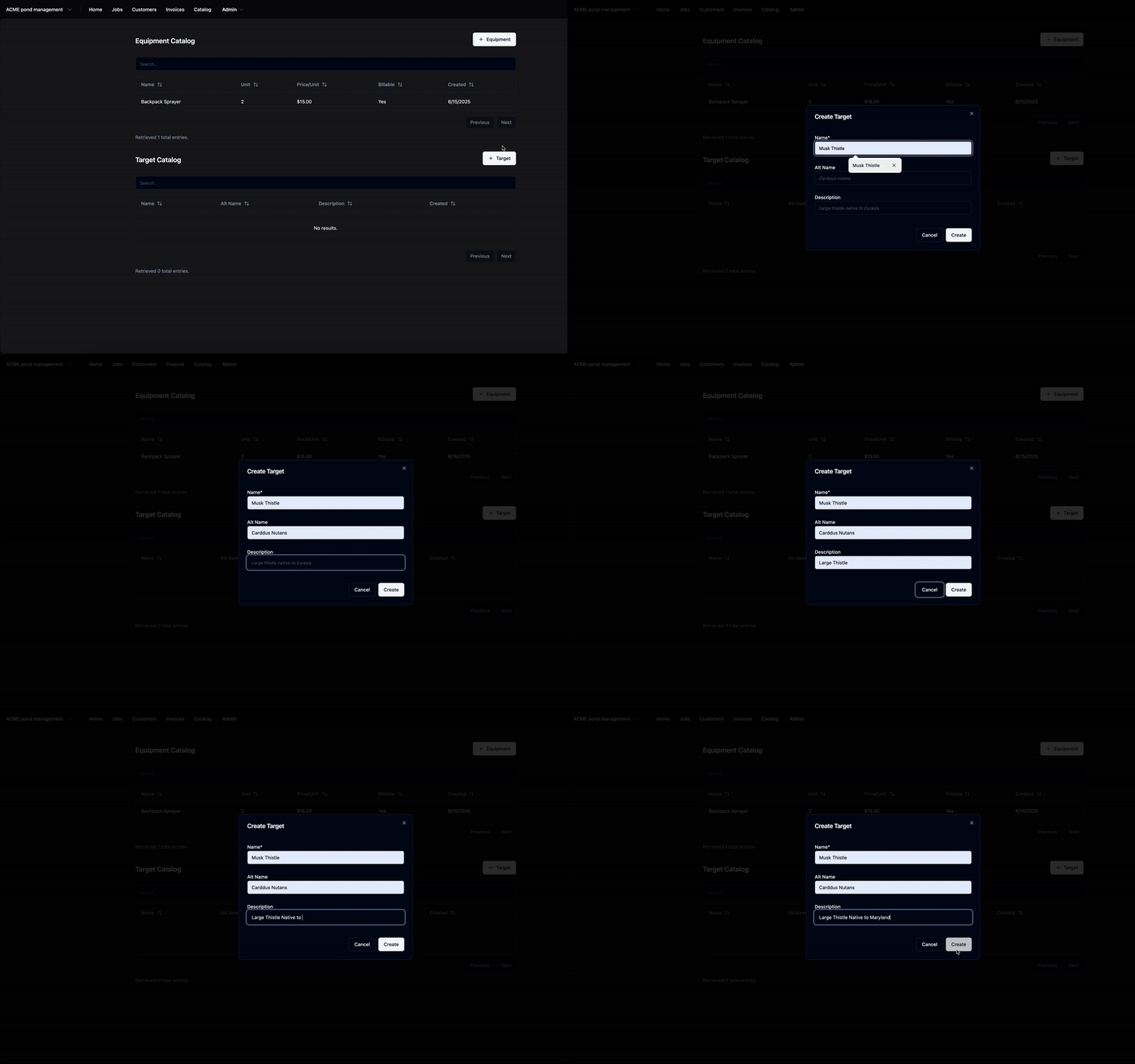
Register the common species or environmental targets your organization manages. Go to the catalog section of the app and press +Targets to add a target to the catalog.
Add targets like Invasive Weed
- Include Alternative Names, and Descriptions for your team.
Manage Users, Customers and Contacts
- Users
- Customers
- Contacts
Users = Your Internal Team
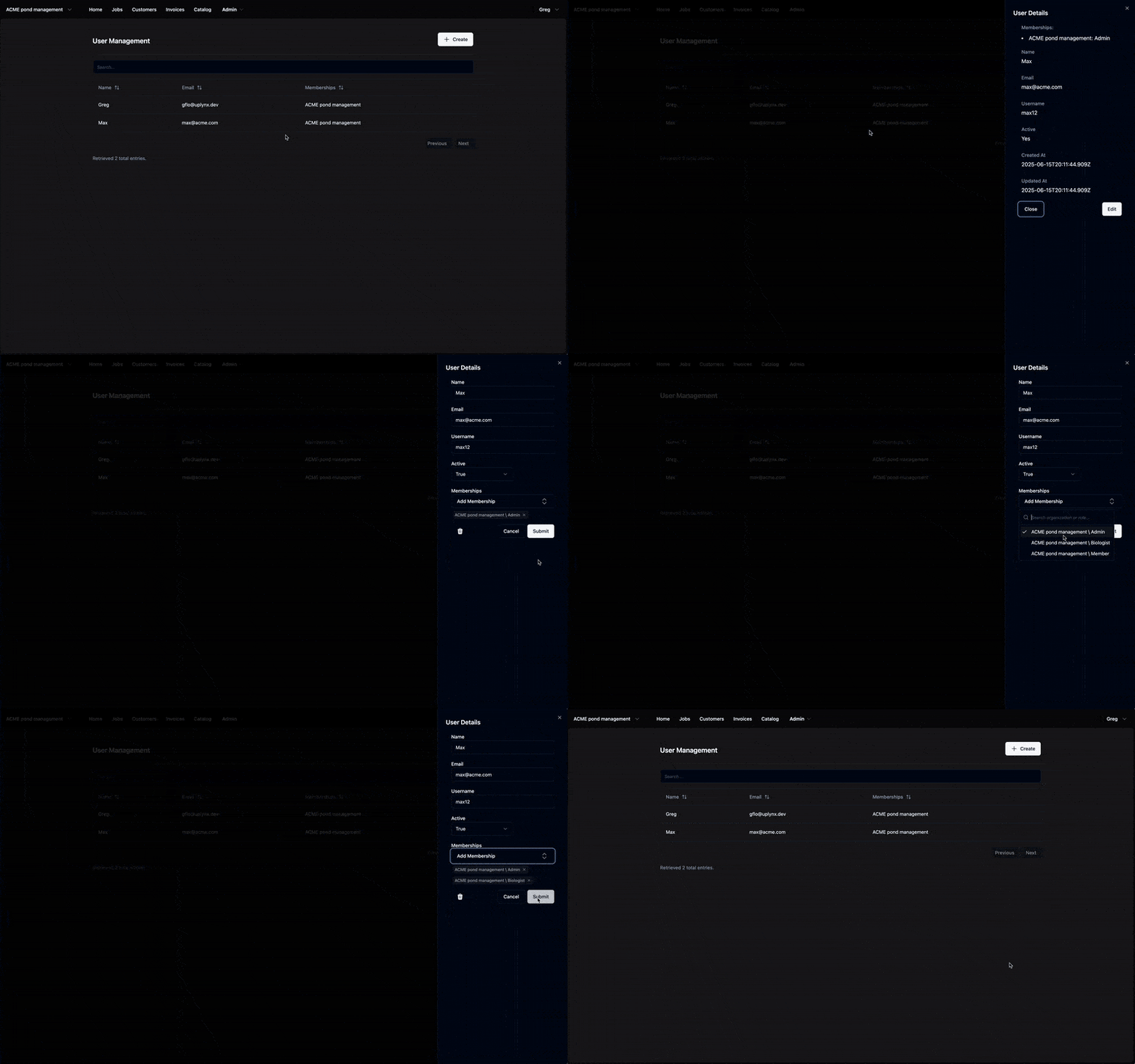
Go to Admin -> Users to view all users in your organzation. Click on the user you want to manage, and press edit to make changes.
- Manage Permissions
- Change Username, and Passwords
Managing customers
Create, update, and delete customer records here.
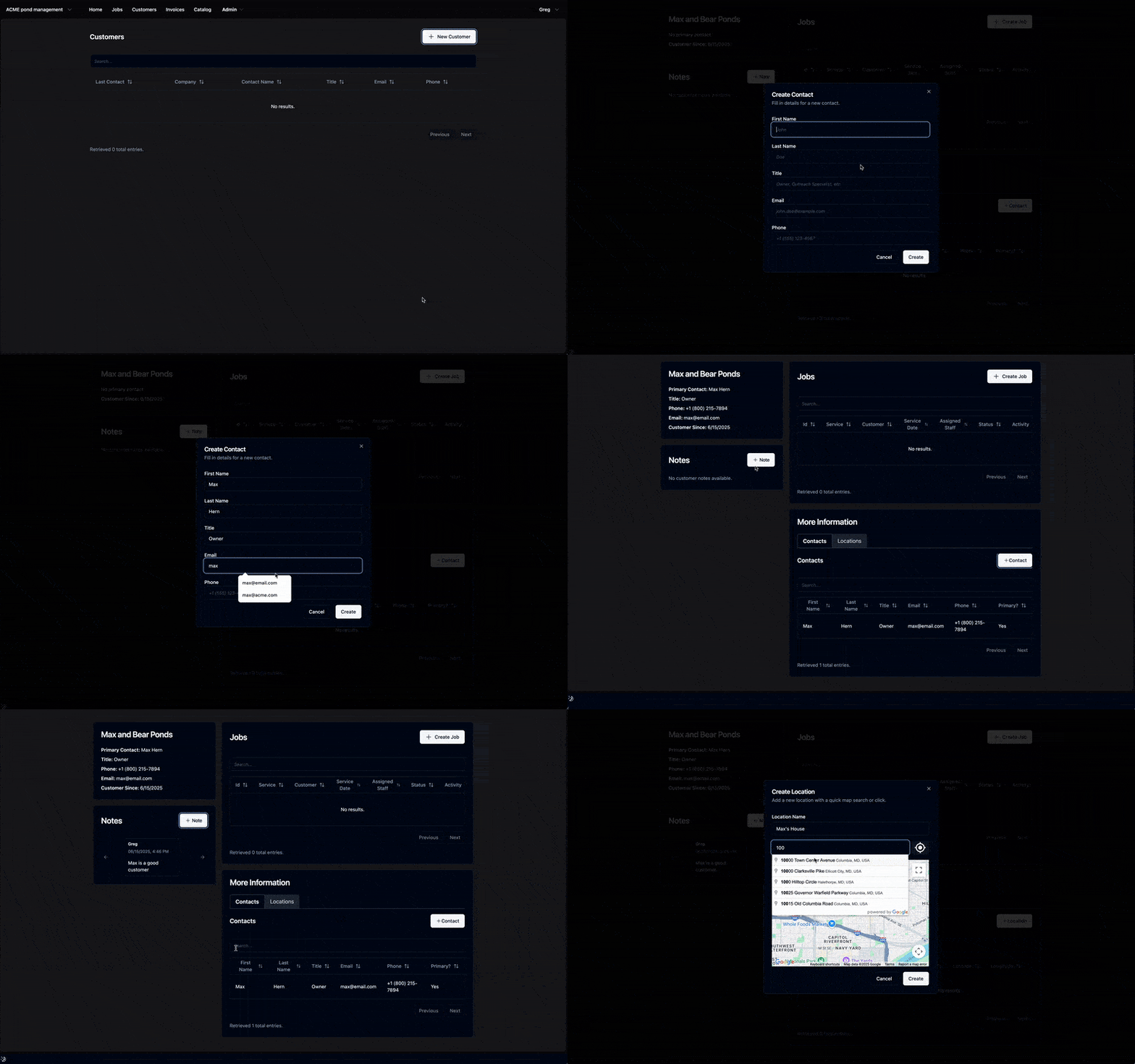
- Go to Customers, and click +New Customer to begin.
Create customer profiles, typically this is a customer name (e.g., John Smith Pond)
- Add Customer Contacts and Locations for use in future jobs.
- Link customers to jobs, contacts, and invoices.
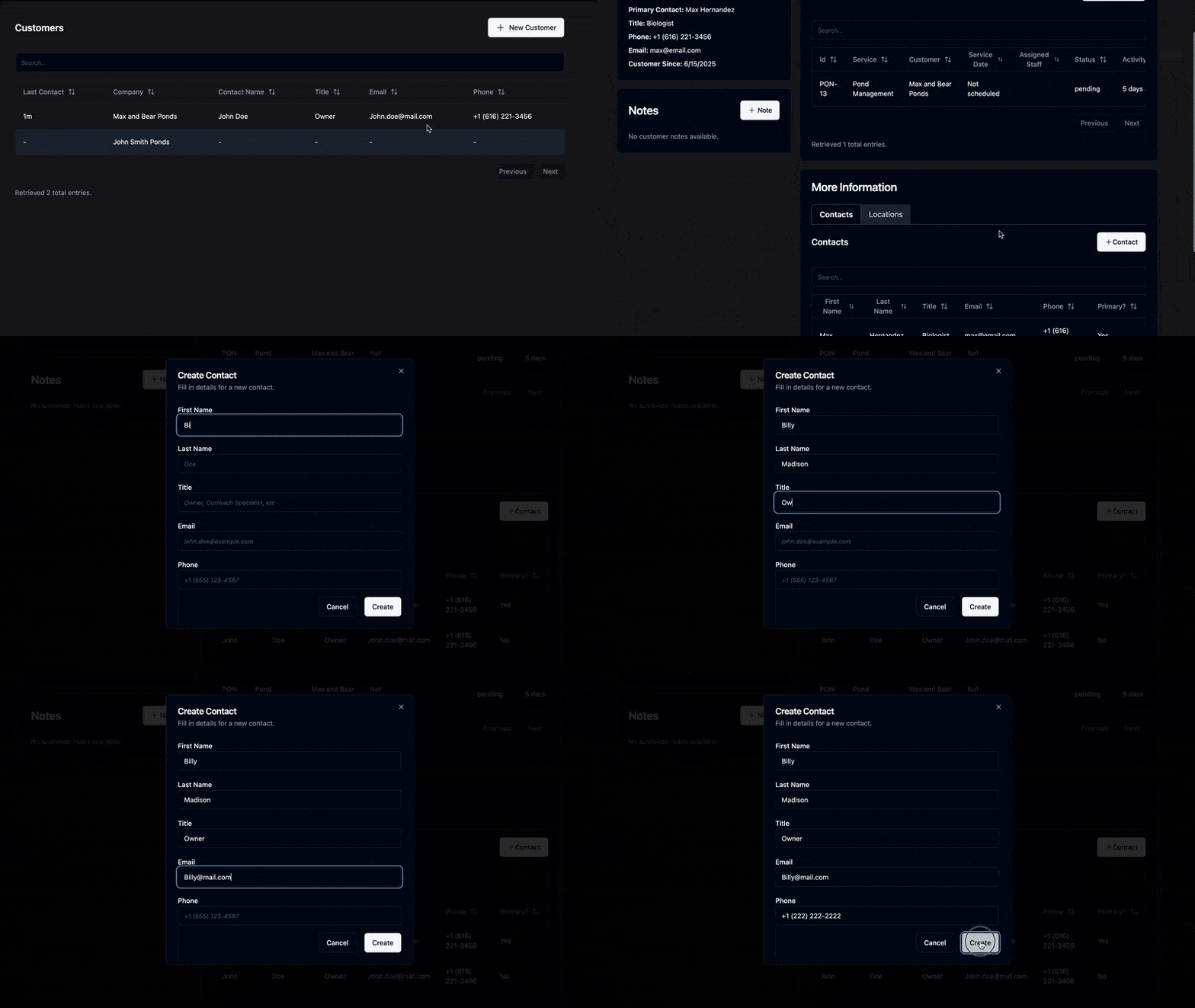
Creating Contacts for Customers
Go to Customers and select a customer from the list
Click Add Contact to store phone numbers, email addresses, and job titles
Each contact becomes selectable when assigning job updates or sending invoices
Create and Manage Jobs
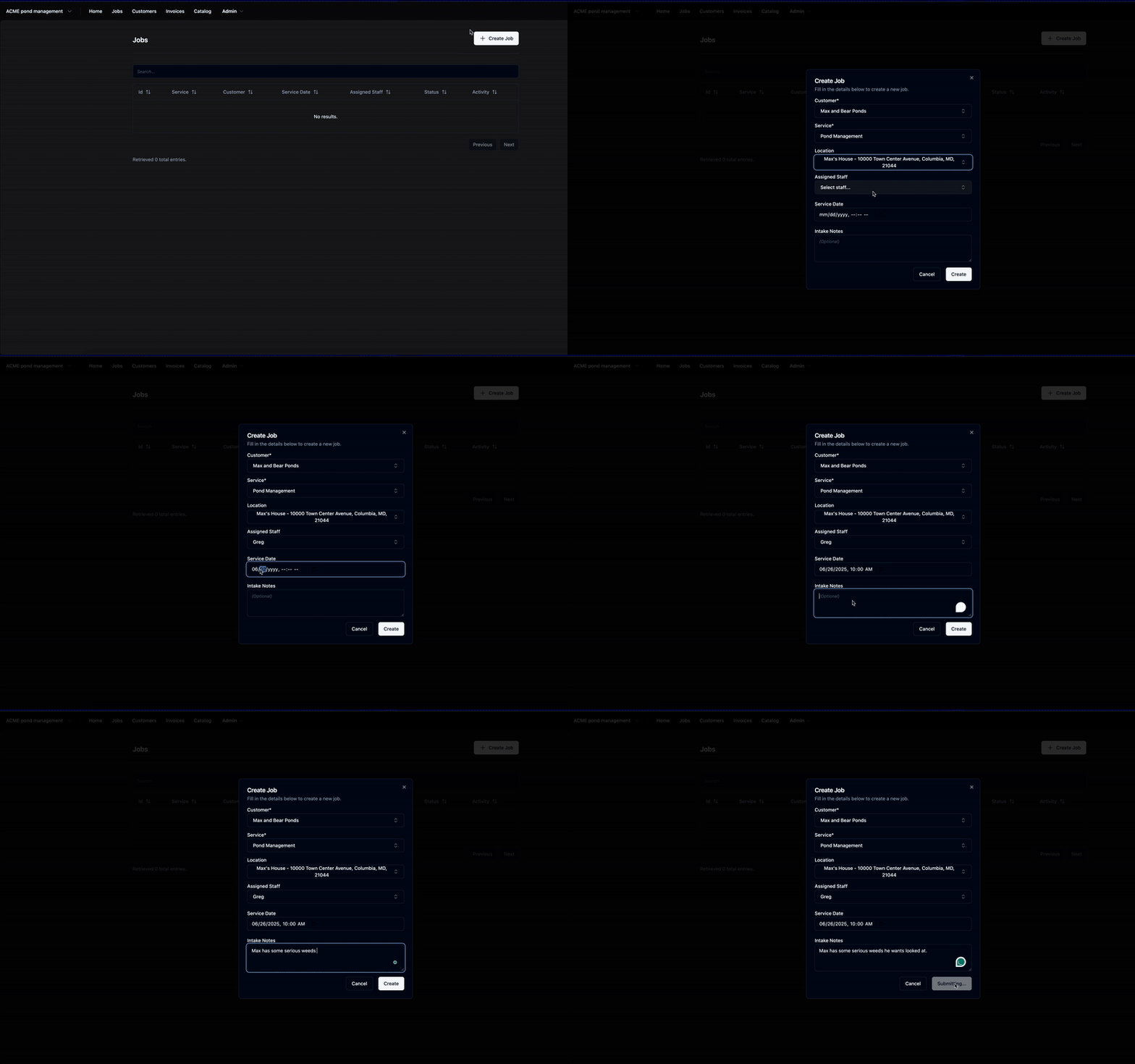
Coordinate Your Field Work
Navigate to the Jobs dashboard
- Create a job and choose location + customer
- Assign to a technician or field team
- Provide any notes to the field technician assigned to the job.
Finish Jobs & Create Invoices
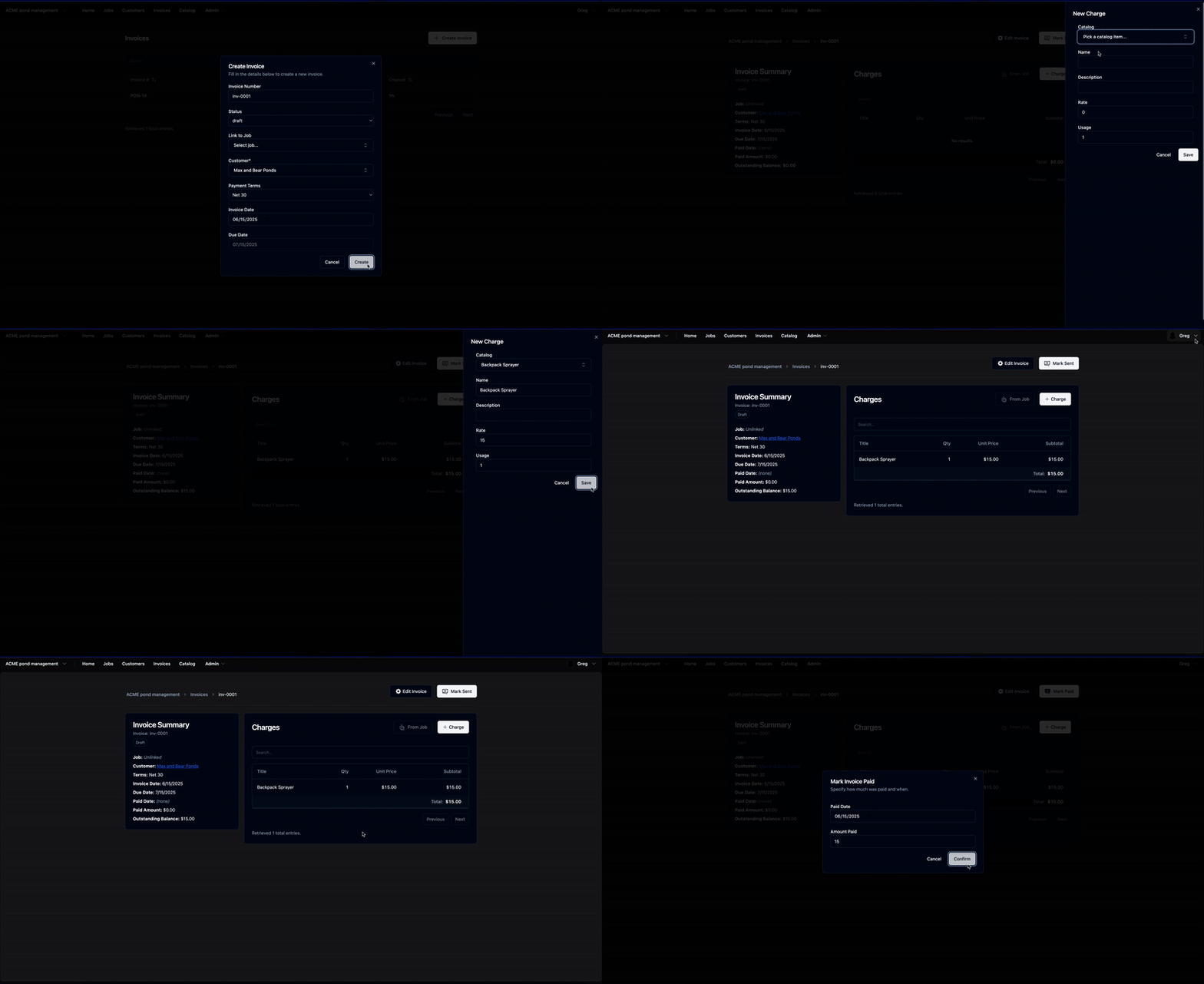
Creating an invoice
- Go to the Invoices section of the app
Click New Invoice
- Import estimate charges from the job or add new charges
- Record payment status in your dashboard